


QuickBooks Error 15102 is an update error that appears when QuickBooks Desktop cannot download or install product or payroll updates. Common causes include an incorrectly mapped Shared Download drive, missing update components, damaged Windows files, firewall restrictions, disabled QuickBooks File Copy Service, or digital-signature verification problems. Users may encounter the error when an update or payroll tax table download stops or fails.
The issue affects QuickBooks Desktop on Windows when permissions, security settings, network access, or update components interfere with the update process. Common fixes include running QuickBooks as an administrator, checking Shared Download settings, using QuickBooks Tool Hub, repairing installation files, resolving digital-signature or security issues, and reinstalling QuickBooks if other solutions fail.
In this article, you will find a complete guide to fix Error 15102 in QuickBooks Desktop, along with its causes, prerequisites, and preventive tips.
Why Does QuickBooks Error Code 15102 Occur?
Several issues can cause QuickBooks Error 15102 during the update process. The most common causes include:
- Windows administrator permissions are missing.
- Corrupted QuickBooks update files block the installation.
- Incorrect Shared Download settings interrupt the update.
- QuickBooks cannot verify the required digital signature.
- Damaged QuickBooks installation files prevent updates.
- Outdated Windows components create compatibility issues.
- Antivirus or firewall software blocks QuickBooks update files.
- Corrupted QuickBooks program components stop the update process.
- Network or internet connection issues interrupt the download.
- QuickBooks File Copy Service (FCS) is disabled.
What are the Signs of Error 15102 in QuickBooks Desktop?
You may notice one or more of the following symptoms when QuickBooks Error 15102 occurs:
- QuickBooks displays Error 15102 during a software or payroll update.
- The update process stops before completion.
- QuickBooks cannot download the latest product update.
- Payroll tax table updates fail to download or install.
- QuickBooks displays the error repeatedly when you retry the update.
- QuickBooks cannot complete the update after downloading the required files.
- QuickBooks continues to show an outdated product or payroll update status.
How to Fix QuickBooks Error Code 15102?
The solutions below address the most common causes of QuickBooks Desktop Error Code 15102. Start with the basic solutions and continue with the advanced troubleshooting methods until the update error is resolved.
Method 1: Run QuickBooks as Administrator
QuickBooks may need administrator permissions to download and install updates. Limited Windows permissions can block the update process and trigger QuickBooks Error 15102.
Running QuickBooks as an administrator allows the program to complete the update with the required permissions.
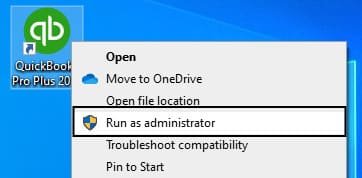
- Close QuickBooks Desktop and your company file.
- Right-click the QuickBooks Desktop icon.
- Select Run as administrator.
- Select Yes when Windows asks for permission.
- Download the latest QuickBooks Desktop update again.
- Download the latest payroll tax table update if required.
Method 2: Reset the QuickBooks Update
Corrupted update files often prevent QuickBooks from downloading new updates. Resetting the update clears the old files and forces QuickBooks to download fresh update components.
- Open QuickBooks Desktop.
- Go to Help > Update QuickBooks Desktop.
- Select the Update Now tab.
- Check Reset Update.
- Click Get Updates.
- Restart QuickBooks after the download completes.
An incorrectly mapped Shared Download drive can interrupt the update process, especially in multi-user environments.
Review the Shared Download setting to make sure QuickBooks uses the correct download location.
- Press Ctrl + 1 to open the Product Information window.
- Note the installation path.
- Go to Help > Update QuickBooks Desktop.
- Open the Options tab.
- Review the Shared Download setting.
- Select No for a single-user setup.
- Verify the mapped network path in a multi-user setup.
- Save the changes.
- Download the update again.
Method 4: Install the Digital Signature Certificate
Windows verifies the digital signature of QuickBooks before installing updates. A missing or damaged certificate stops the verification process and results in Error 15102.
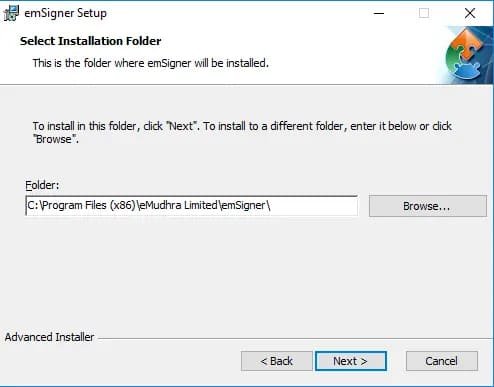
- Close QuickBooks.
- Open File Explorer.
- Go to C:\Program Files\Intuit\QuickBooks.
- Right-click QBW32.exe and select Properties.
- Open the Digital Signatures tab.
- Select Digital Signature and verify that Intuit is selected.
- Select Details.
- Select View Certificate.
- Select Install Certificate.
- Select Next until Finish appears, then select Finish.
Method 5: Use Quick Fix my Program
Damaged QuickBooks background processes can interfere with software updates. Quick Fix my Program shuts down these processes and performs a quick repair on the QuickBooks program.

- Download and install the latest QuickBooks Tool Hub.
- Open Tool Hub.
- Select Program Problems.
- Click Quick Fix my Program.
- Wait until the repair finishes.
- Open QuickBooks.
- Retry the update.
Method 6: Delete the QuickBooks Components Folder
Missing or damaged update components can prevent QuickBooks from downloading updates. Deleting the Components folder allows QuickBooks to create fresh update components.
- Close QuickBooks Desktop.
- Open File Explorer.
- Go to C:\ProgramData\Intuit\QuickBooks XX\Components.
- Replace XX with your QuickBooks Desktop version.
- Right-click the Components folder and select Delete.
- Open QuickBooks Desktop.
- Go to Help > Update QuickBooks Desktop.
- Select Update Now.
- Select the Reset Update checkbox.
- Select Get Updates.
- Close and reopen QuickBooks after the download finishes.
- Go to Help > Update QuickBooks Desktop.
- Select Overview, then Update Now.
Method 7: Repair the QuickBooks Installation
Damaged installation components can trigger update-related errors. The QuickBooks Install Diagnostic Tool can repair common installation problems and help QuickBooks complete the update.
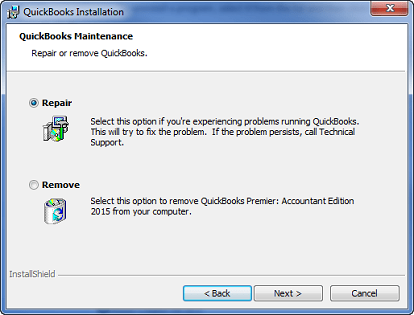
- Close QuickBooks Desktop.
- Open QuickBooks Tool Hub.
- Select Installation Issues.
- Select QuickBooks Install Diagnostic Tool.
- Wait for the tool to complete the repair.
- Restart your computer.
- Open QuickBooks Desktop.
- Download the update again.
Method 9: Install the Latest Windows Updates
Outdated Windows components create compatibility issues with QuickBooks updates. Installing the latest Windows updates keeps your system compatible with the latest QuickBooks release.
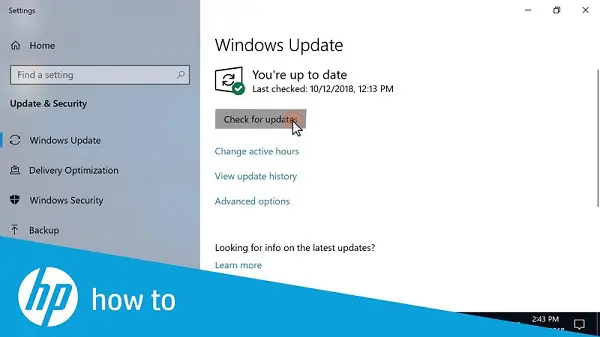
- Open Windows Settings.
- Select Windows Update.
- Click Check for updates.
- Install every available update.
- Restart your computer.
- Open QuickBooks.
- Download the update again.
Method 10: Configure Antivirus and Firewall Settings
Firewall and internet security settings can block QuickBooks updates or payroll downloads. Review these settings and allow QuickBooks to access the required update services.
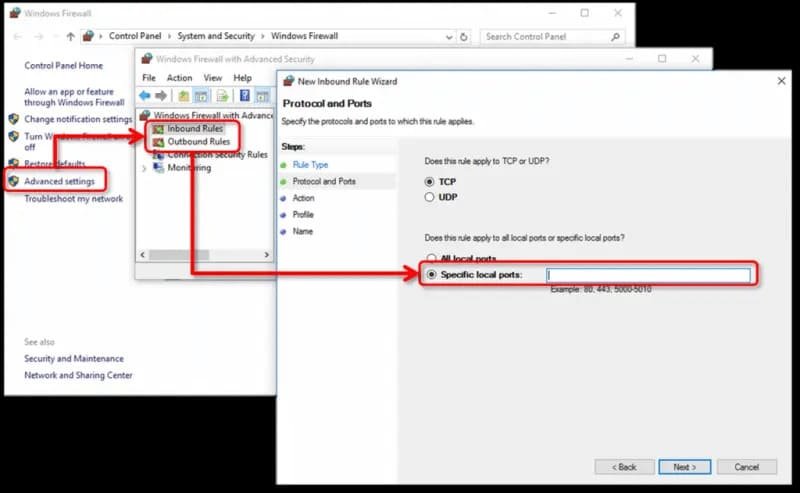
- Open your antivirus or internet security settings.
- Add QuickBooks Desktop as an allowed application.
- Allow QuickBooks through Windows Firewall.
- Save the security settings.
- Restart QuickBooks Desktop.
- Download the update again.
Method 11: Perform a Clean Install of QuickBooks Desktop
Reinstalling QuickBooks can replace damaged program files that earlier troubleshooting methods cannot repair. Use this method only after the other solutions fail.
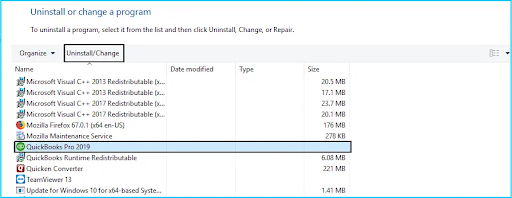
- Uninstall QuickBooks Desktop.
- Use the QuickBooks Clean Install Tool if required.
- Restart your computer.
- Install QuickBooks Desktop again.
- Activate QuickBooks Desktop.
- Download the latest updates.
Tips to Prevent QuickBooks Error 15102
Here are a few best practices that help reduce the chances of encountering Error 15102 in QuickBooks during future updates.
- Keep QuickBooks Desktop updated with the latest releases.
- Install Windows updates regularly.
- Use administrator privileges when installing QuickBooks updates.
- Use a stable internet connection during downloads.
- Review Shared Download settings in multi-user environments.
- Keep QuickBooks allowed through your firewall and security software.
- Create regular backups of your company file.
- Avoid interrupting the update process before it finishes.
Conclusion
To fix QuickBooks Error 15102, start by running QuickBooks Desktop as an administrator, resetting your update downloads, or utilizing the QuickBooks Tool Hub for an automated QuickBooks Error 15102 repair. Adjusting your Shared Download path or reinstalling digital certificates also provides a reliable QuickBooks Error 15102 solution. If you are wondering how to fix Error 15102 in QuickBooks Desktop permanently, following the above-mentioned troubleshooting steps restores seamless payroll and program updates.
Struggling With Accounting or Bookkeeping?
Talk to our experts in minutes — No wait time!
- Free Consultation
- Fast Response
- Trusted Experts

Frequently Asked Questions
Will fixing Error 15102 affect my existing company files or data?
No. Error 15102 only affects temporary update files. Your company data remains completely safe, intact, and unaffected.
Why does Error 15102 keep happening after I reset the update?
External security blocks like firewalls, strict antivirus software, or mismapped multi-user network drives continually prevent fresh update downloads.
What should I do if the digital signature certificate fails to install?
Log into Windows as an administrator, update Windows to refresh root certificates, then install the certificate via QBW32.exe.
Can I manually download QuickBooks payroll tax table updates to bypass Error 15102?
Yes. You can manually download payroll tax updates from Intuit’s official support website and install them offline successfully.
What is the difference between Error 15102 and other 15000-series update errors?
Error 15102 specifically stems from missing administrator rights or invalid download paths, whereas other codes often signal connection timeouts.

Adams Williams
Adams Williams is a seasoned accounting professional with over 4 years of experience in bookkeeping, financial reporting, and business accounting solutions. Specializing in QuickBooks software, Adams combines technical expertise with clear, accessible content writing to help businesses streamline their financial processes. His insightful guides and how-to articles are crafted to assist both beginners and seasoned users in navigating accounting software with confidence.
Fix QuickBooks Error 15271 | Step-by-Step Solutions
Fix QuickBooks Error 15222 Fast – Secure Update Guide


